TLDR
- Two jobs: (A) build a native Memoji in Messages / keyboard, or (B) turn a clear face photo into a Memoji-style still online.
- Native path: Apple documents creation in Messages—compose → Plus → Memoji → New Memoji—then customize features and tap Done (Apple Support HT111115; iPhone User Guide).
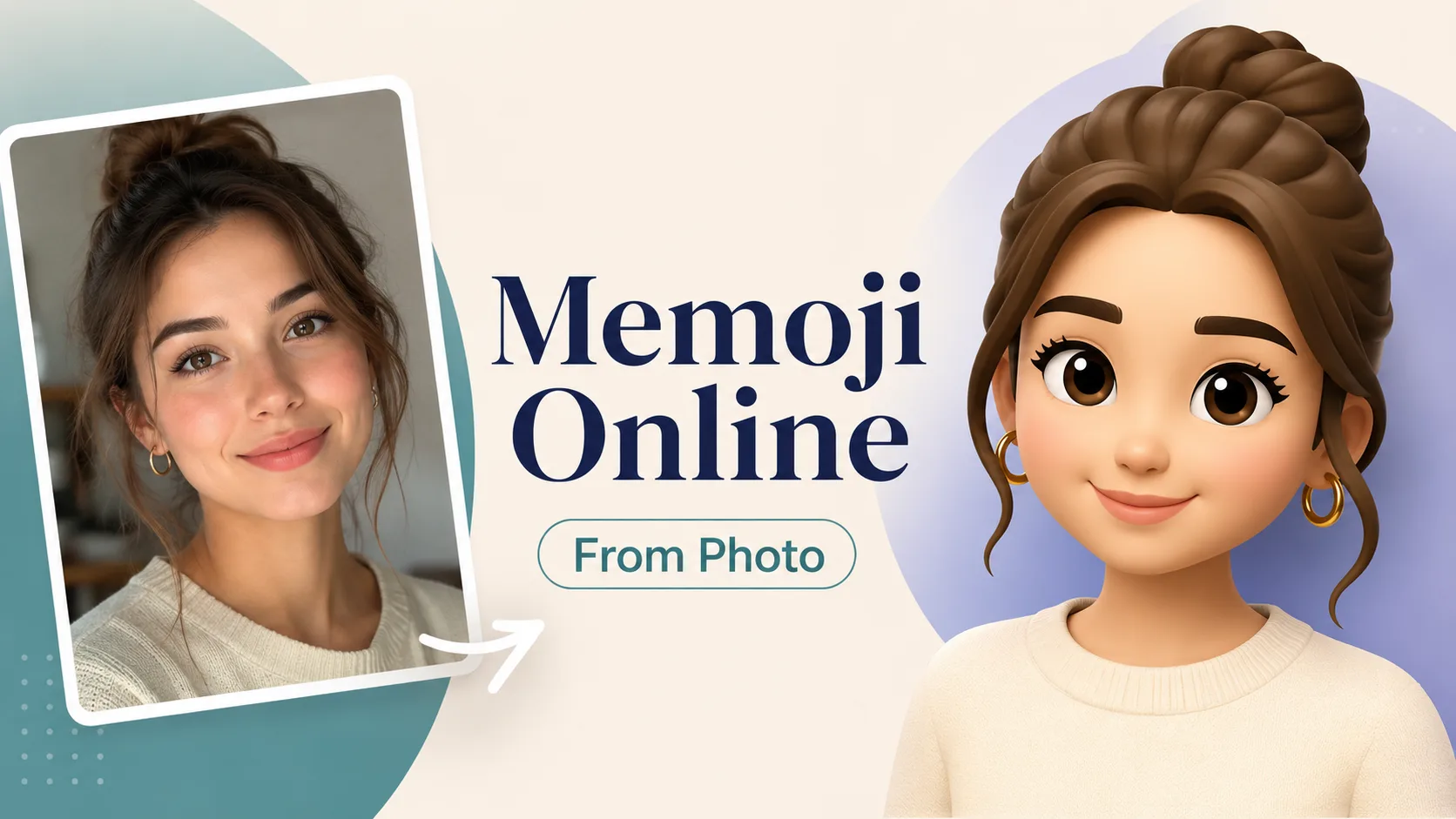
- Online path (this site): open Memoji Creator → upload a front-facing photo → generate → download. Optional text only for extras (glasses, hair, vibe).
- Device split: Memoji stickers became available more broadly after iOS 13; full animated Memoji still needs a compatible iPhone / iPad Pro (Apple Support; background on stickers without Face ID: Cult of Mac).
- Genmoji is different: Apple Intelligence Genmoji is a separate custom-emoji feature (Apple Support Genmoji; Apple Newsroom). Do not treat this site’s stills as Genmoji.
Key Takeaways
- Primary conversion: Memoji Creator online—photo in, soft 3D Memoji-style bust out (open the generator on that page).
- Native creation is free inside Apple’s apps, but it is a manual feature editor, not “upload one selfie and ship.”
- Animated face Memoji / FaceTime needs a compatible device; stickers are the lighter path on more phones.
- Cross-device native Memoji on compatible Apple hardware needs the same Apple Account, two-factor authentication, and iCloud Drive per Apple’s Memoji help (HT111115; 2FA overview).
- This site’s effect ignores text painted into the source photo and focuses on the face (product fact from the fixed Photo → Memoji preset).
- Secondary entry: the homepage generator (
/#tool-generator) if you already know the product.
Apple native vs web AI (choose in 30 seconds)
| Dimension | Apple native Memoji | Memoji Generator (web AI) | | --- | --- | --- | | Path | Messages / keyboard / Settings profile flows (Support; Pocket-lint summary) | Browser Memoji Creator on this site | | Input | Manual sliders: skin, hair, eyes, body, glasses, and more (App Store Memoji story) | Clear face photo + optional short wish list | | Output | System Memoji + sticker pack; optional animation on compatible hardware | Still image in Apple-style 3D Memoji look (downloadable) | | Install into Messages as system Memoji? | Yes (on Apple) | No | | Works without an iPhone? | No | Yes (any modern browser) | | Best when… | You live in iMessage / FaceTime and want official stickers | You want a profile avatar or social graphic from a selfie fast |
Apple’s own stack also separates Memoji, stickers, and newer Genmoji layers (WWDC24 Genmoji session). Keep those names straight so you pick the right tool.
Path A — Apple native Memoji (short, official)
Use this when stickers inside Messages (or animated Memoji on a supported device) are the real goal. Condensed from Apple’s public steps—not a full Settings encyclopedia:
- Open Messages and start or open a conversation.
- Tap the Plus button.
- Swipe / browse and open Memoji.
- Swipe to New Memoji.
- Customize features (skin tone, hairstyle, eyes, and the rest of Apple’s editor).
- Tap Done.
Your Memoji becomes a sticker pack you can use from the keyboard in Messages, Mail, and some third-party apps (Apple Support; keyboard path: Add emoji, Memoji, and stickers). You can also create and send Memoji from the Messages flow in the iPhone User Guide.
Animated Memoji / FaceTime: follow Apple’s “compatible iPhone or iPad Pro” requirement on the same support page—do not assume every sticker-capable phone can run full face tracking.
If your only job was “teach me every Settings toggle,” stop here and stay on Apple’s docs. If your job is photo → character without an Apple editor, go to Path B.
Path B — Make a Memoji online from a photo (main path)
This is the product intent of how to make a Memoji online on this site: one clear selfie (or portrait) in, one soft 3D character out.
Step 1 — Open the Memoji Creator
Go to the Memoji Creator and scroll to the generator (#tool-generator). Prefer this generator page over a random blank model form: it is already bound to the fixed Photo → Memoji effect (soft clay-like skin, oversized head, simple cartoon eyes, bust portrait).
You can also start from the homepage generator (/#tool-generator) if that is where you landed.
Step 2 — Upload a clear, front-facing photo
Checklist before you hit generate:
| Do | Avoid | | --- | --- | | One main face, eyes open | Heavy side profile only | | Even lighting on the face | Harsh backlight / silhouette | | Face large enough in frame | Tiny face in a group crowd | | Simple background if you can | Busy text overlays (text in the photo is ignored by the preset) | | Rights-clear photo of people who consented | Celebrities / random strangers as identity claims |
Step 3 — Optional wishes, then generate and download
Leave the optional prompt blank for a clean default Memoji-style pass, or add a short line for glasses, hair, clothes, or expression. Download the still for profiles, stickers you design yourself, or social posts.
Copyable optional prompts (paste next to your photo)
Prompt A — clean default look
Keep my face recognizable. Soft smile, neat short hair if unclear, plain soft sweater, classic Apple-style Memoji proportions, even studio light, solid light gray background, bust only.Prompt B — glasses + cool vibe
Same person, slightly cooler expression, thin rectangular glasses, short textured hair, dark crewneck, soft blush cheeks, toy-like 3D Memoji look, no logos, no watermark.Prompt C — brighter social avatar
Same face identity, bigger friendly smile, longer hair with soft volume, light pink top, soft pastel studio background, oversized round head Memoji style, bust portrait only.Run once with A, then change one variable (glasses, hair, expression) if you re-roll. Do not stack ten style wishes on the first try.
Failure modes and a quick checklist
| Symptom | Likely cause | Fix | | --- | --- | --- | | Face looks like someone else | Side angle, heavy filters, occlusion | Straighter selfie, remove mask/hand | | “Plastic” but not Memoji | Prompt drifted to Pixar / anime / realism | Leave prompt blank or re-use Prompt A | | Extra random text on image | Model noise | Re-run; never depend on in-image lettering for names | | Multiple people mashed | Group photo | Crop to one face | | Too dark / muddy | Backlight or low light | Window light or front fill |
Before you generate
- Front-facing face fills a large part of the frame.
- You accept a style approximation, not an official Apple asset.
- You opened Memoji Creator on this site, not a third-party demo page.
- Optional prompt is short (one or two wishes).
- You will not claim the PNG is a system Memoji for iMessage install.
What we know vs what we don’t
What we know
- Apple publishes how to create, send, sticker-ize, and (on compatible hardware) animate Memoji (HT111115; User Guide; keyboard guide).
- Genmoji is a separate Apple Intelligence emoji-creation path (Support; Newsroom).
- Memoji Generator’s live page for this job today is /image/memoji-creator/ with a photo-to-Memoji-style effect (secondary entry: homepage
/#tool-generator).
What we don’t
- We do not ship official Apple Memoji 3D assets or Messages plugins.
- We do not guarantee pixel-perfect identity lock like a biometric face ID product.
- We do not promise results will pass as “real Memoji” inside Apple’s apps.
FAQ
How do I make a Memoji online without an iPhone?
Use a browser path: open Memoji Creator on this site, upload a clear face photo, generate, and download. That is a Memoji-style still, not a system Memoji installed by Apple.
How do I make a Memoji on iPhone the official way?
Follow Apple’s Messages flow: Plus → Memoji → New Memoji → customize → Done (Apple Support).
Is a web Memoji the same as Apple Memoji?
No. Web tools (including this site) produce images in a similar visual language. Apple Memoji is an in-OS avatar + sticker system with optional animation on compatible devices.
Can I use Memoji stickers without Face ID?
Sticker creation/use broadened beyond TrueDepth-only devices after iOS 13-era changes; full animated Memoji still depends on compatible hardware. See Cult of Mac’s overview plus Apple’s current compatibility notes.
What photo works best for photo-to-Memoji online?
A single front-facing face, good light, eyes visible, face large in frame. Avoid group crops and heavy beauty filters.
Do I need a prompt, or is the photo enough?
Photo alone is enough for the default style. Add a short optional prompt only for extras (glasses, hair length, expression)—see Prompt A–C above.
Will the result go into iMessage as my Memoji?
No. Download the image for profiles or stickers you place yourself. For system Memoji, use Apple’s editor.
What is the difference between Memoji and Genmoji?
Memoji is Apple’s customizable 3D avatar system. Genmoji is Apple Intelligence custom emoji from descriptions (and related photo-based options Apple documents). They are different features (Genmoji Support).
Where should I start on this site?
Start at Memoji Creator → generator. For a second entry, use the homepage generator at /#tool-generator.
About Maya Cho
Maya Cho is an Avatar Workflow Writer. She turns photo-to-avatar experiments into short, honest workflows and writes the hands-on guides on Memoji Generator.